

Article
Traverse is now available for Mac.
It is an outliner built for the kind of thinking that starts simple, then quickly becomes layered: projects with phases and decisions, research with sources and claims, writing plans with sections and supporting points, personal knowledge maps, product ideas, client work, meeting notes, and all the half-formed material that needs a place to become clearer.
A normal list is often enough at the beginning. You add a few bullets, shuffle things around, and feel like you have caught the thought. But as soon as the work grows a few levels deep, the list can become cramped. You either open everything and lose the shape, or collapse everything and lose the detail.
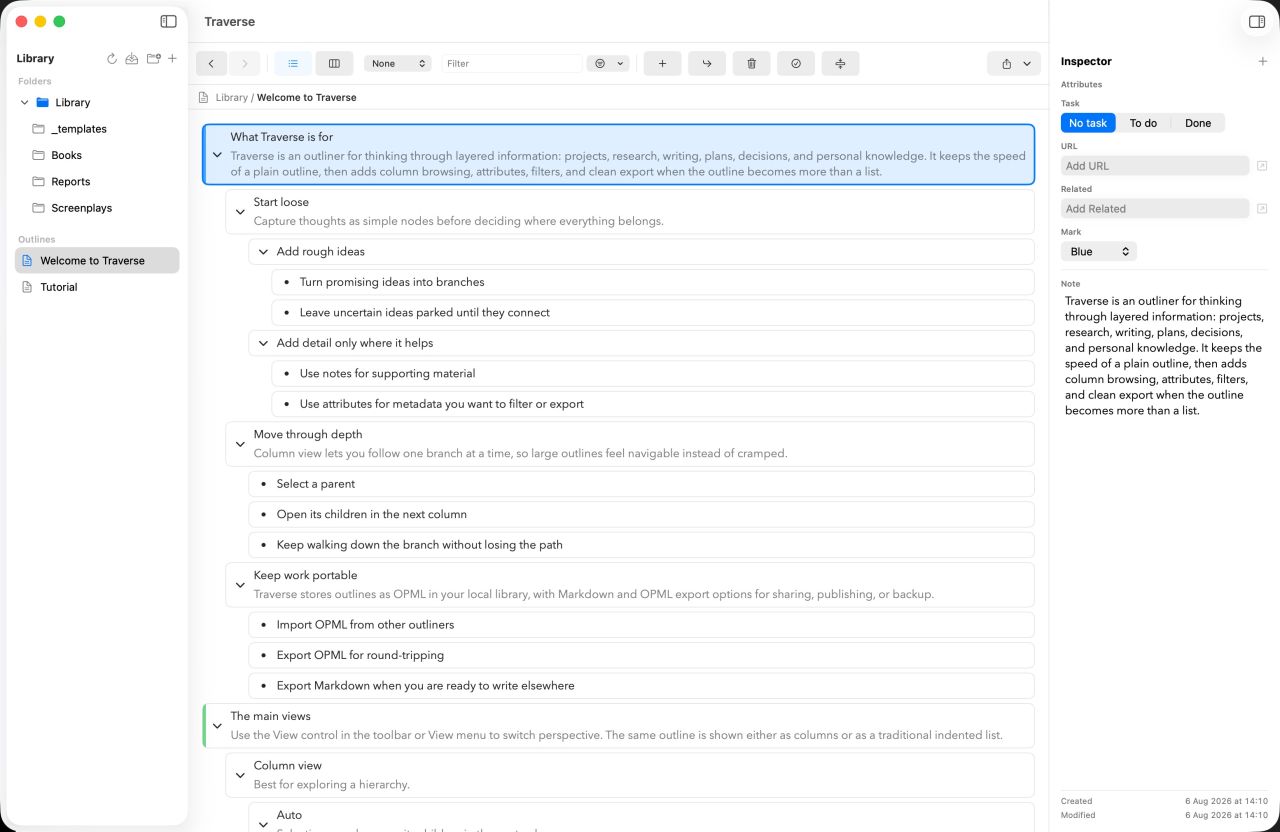
Traverse is designed for that middle space. It keeps the speed and familiarity of an outline, but gives you better ways to move through the depth.
It also gives you more than one way to meet the same material. Writer view turns the outline into a calm, continuous document when the words need your attention. Outline view exposes the wider hierarchy. Auto Columns follows one path through it, while Manual Columns lets several branches remain open for comparison. Switching view never converts or duplicates the outline: it changes the perspective, not the data.
Why Traverse exists
Traverse started from a simple feeling: outlines are still one of the best tools for thinking, but they are often treated as plain nested lists. That undersells them.
An outline can be a project map, a writing structure, a research database, a decision tree, a study plan, a product roadmap, or a way to take apart an idea until you can see what it is made of.
Traverse leans into that. It is not trying to be a full task manager, a notes archive, a mind-mapping canvas, or a document editor. It is focused on helping you build, browse, reshape and export structured information.
Good uses for Traverse
- Plan projects by breaking goals into phases, milestones, tasks, risks and decisions.
- Map research by collecting sources, claims, quotes, themes and unanswered questions.
- Outline articles, reports, presentations, books, courses or documentation before turning them into finished writing.
- Develop screenplays with dedicated Fountain roles for scenes, action, characters, dialogue and the other parts of a script.
- Build personal knowledge maps where ideas can sit inside other ideas without being flattened too early.
- Organise meetings, workshops or client work with sections for context, discussion points, actions and follow-up.
- Explore complex decisions by separating options, criteria, tradeoffs, evidence and next steps.
- Build repeatable working structures with Templates and reusable Snippets.
- Start with a loose capture outline, then gradually add structure only where it helps.
Choose the view that fits the moment
Traverse has four working views, all looking at the same outline.
Writer view presents the nodes as a continuous document. Return creates the next line, Shift-Return creates a child, and Tab or Shift-Tab changes the hierarchy without leaving the text. Optional Typewriter mode keeps the active line near the centre of the window during a longer writing session.
Outline view is the familiar indented overview: useful for scanning a long section, making quick keyboard edits and collapsing branches that are not relevant yet.
The two Column views are designed for depth. Auto Columns follows the selected path and opens its children ahead of you. Manual Columns lets you keep several branches open at once, which is useful for comparison and filtered work. Columns can use fixed widths or a Dynamic setting that fits each column to the content it currently displays.
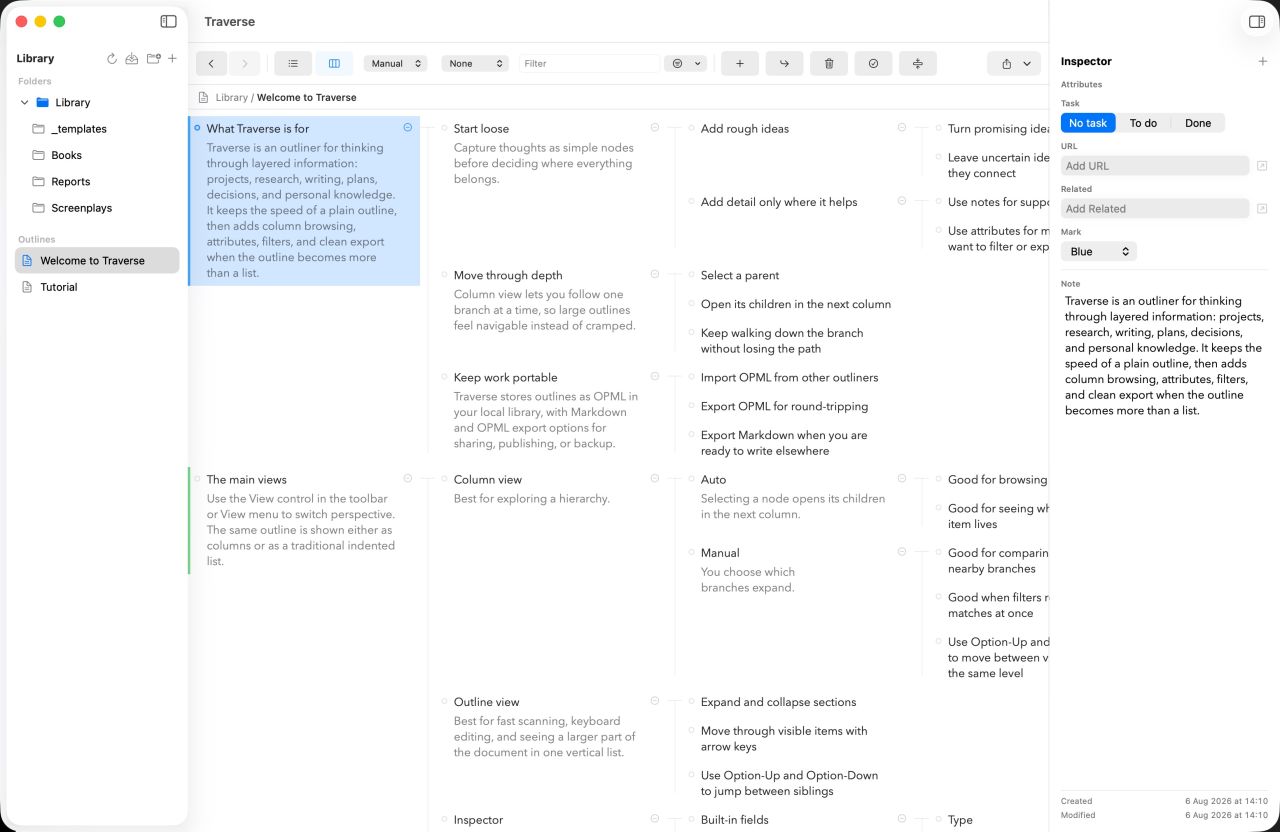
Use Command-1 for Outline, Command-2 for Writer, Command-3 for Auto Columns and Command-4 for Manual Columns. You can also choose a default for new blank outlines in Settings, while each Template retains the view saved with that Template.
From outline to finished material
Traverse is not only about navigating an outline. One of the most powerful parts of the app is the way a hierarchy can become useful output.
With Traverse Pro, the Type attribute lets you say what each node means in a document. A node can be a heading, body text, bullet, numbered bullet, blockquote, code block or divider. Traverse reflects that structure while you work, then turns it into clean semantic Markdown when you export.
You can choose a role from the node’s Type icon or the Format menu, or apply one as you type. Begin a line with a familiar marker followed by a space—# for a Heading, > for a Blockquote or - for a Bullet—and Traverse removes the marker and assigns the matching Type.
That makes it possible to outline a report, article, book chapter, piece of documentation or project brief without maintaining one structure for planning and another for writing. The outline can already understand the document it is becoming.
Fountain brings the same idea to screenwriting. Add the Fountain attribute with Traverse Pro and nodes can become sections, synopses, scene headings, action, characters, dialogue, parentheticals, transitions, notes, lyrics, page breaks and other screenplay elements.
Fountain has the same smart-entry approach. Markers such as . for a Scene Heading, @ for a Character and = for a Synopsis let the screenplay structure appear as part of writing rather than as a separate clean-up pass.
Character-aware suggestions help keep names consistent as a script grows. Traverse also keeps screenplay title-page information with the outline, and Fountain export can include notes, draft branches as Boneyard material, and Traverse marks as Beat colour markup. The result is a plain-text Fountain file that can continue into dedicated screenwriting tools.
Type and Fountain turn the outline from a preliminary sketch into part of the production workflow.
Templates and Snippets
Some structures are worth using more than once.
Traverse Pro includes Templates for creating complete new outlines from a structure you already trust. A template might be a project plan, research map, report, book, presentation, screenplay framework, workshop or any other starting point you return to regularly.
Snippets work at a smaller scale. They let you insert a reusable branch into the outline you are already editing: a checklist, meeting format, source-evaluation pattern, review structure, standard project phase or anything else that should not need to be rebuilt each time.
Together, Templates and Snippets make Traverse useful not just for individual documents, but for developing a personal system of repeatable ways to think and work.
Key features
- Writer view for drafting in a continuous document while preserving outline hierarchy.
- Optional Typewriter mode for keeping the active line in a comfortable writing position.
- Column view for browsing deep outlines without losing the selected path.
- Outline view for fast scanning, editing and working through longer sections.
- Auto and manual column navigation, depending on whether you want to follow one path or compare multiple open branches.
- Normal, Wide, Extra Wide and Dynamic column widths.
- Local OPML-based library, so your outlines remain portable files rather than being trapped in a database.
- Import support for OPML, iThoughts and Tree files.
- Traverse Pro import for Markdown, plain-text and Fountain files.
- Multi-line paste that turns lines into nodes and preserves indentation as hierarchy.
- Built-in node fields for notes, tasks, URLs and colour marks.
- Type in Traverse Pro for headings, body text, lists, quotes, code, dividers and structured Markdown export.
- Fountain in Traverse Pro for screenplay-aware outlining, character suggestions, title-page metadata and clean Fountain export.
- Smart Type and Fountain entry using familiar Markdown or Fountain markers followed by a space.
- Type and Fountain role pickers on node icons, plus Format-menu commands and keyboard shortcuts.
- Templates in Traverse Pro for creating complete outlines from reusable starting structures.
- Nested folders inside
_templatesfor organising a larger Template library. - Snippets in Traverse Pro for inserting reusable branches into the outline you are working on.
- Custom attributes in Traverse Pro, including strings, numbers, dates, URLs, checkboxes and lookup fields.
- Text filtering for quickly finding matching nodes and notes.
- Pro attribute filters for tasks, Type, Fountain elements, marks, custom checkboxes and lookup values.
- Focus mode in Traverse Pro, so you can work inside one branch without the rest of the outline in view.
- Generated numbering, including decimal and APA-style numbering options.
- Markdown export as either a simple nested list or a more document-like structure.
- Markdown note export with notes omitted,
//-prefixed or%%-wrapped. - Fountain export for moving screenplay material into the wider Fountain ecosystem.
- CSV export when the outline and its attributes need to become tabular data.
- OPML export for backup, round-tripping and moving outlines between compatible apps.
- PDF export of the current view when you want to share or print the shape of an outline.
- Direct editing of external OPML files with Traverse Pro.
- Optional Apple Intelligence support in Traverse Pro for generating a starting outline from a prompt on supported Macs.
- Optional Fountain formatting when Apple Intelligence generates a film or screenplay outline.
- Writing settings for spell checking and automatic correction while editing.
Why it is a good option
Traverse is useful when you want structure without ceremony.
You can start with a blank outline and just type. Return adds a sibling. Tab adds a child. Drag things around when the shape changes. Add notes when a node needs more context. Add task states, URLs, marks or attributes when the outline starts becoming something more operational.
That gradual approach matters. Some apps ask you to decide too much up front: is this a note, a task, a page, a database item, a card, a project? Traverse lets the material stay flexible for longer. A rough thought can become a section. A section can become a plan. A plan can become a Markdown document, a Fountain screenplay, an OPML file, or a focused branch you keep working on.
It is also intentionally portable. Traverse uses OPML as its working format, and export is built in from the start. If an outline needs to become a document, Markdown export is there. If it is becoming a screenplay, Fountain is there. If its metadata belongs in a spreadsheet, CSV is there. If it needs to move to another outliner, OPML is there. If you want to share the view as it looks on screen, PDF export is there.
Free and Pro
Traverse Free is a capable local outliner rather than a short-lived trial. You can create, import and edit as many outlines as you need in the Traverse library, use Writer, Column and Outline views, add notes, tasks, URLs and marks, search node text and notes, open external OPML files read-only, and export your work.
Traverse Pro adds leverage when an outline needs to become more structured, reusable or closely connected to the rest of your workflow. Pro unlocks adding Type for structured Markdown and Fountain for screenwriting, importing Markdown, plain-text and Fountain documents, creating outlines from Templates, inserting reusable Snippets, adding custom attributes, filtering by attributes, using Focus mode, editing external OPML files directly, and generating a starting outline with Apple Intelligence where it is available.
The Free version is designed to keep your work accessible. If Pro is not active, library outlines remain editable, browsable, searchable and exportable. Type, Fountain and custom attributes that are already present continue to work; Pro is required when you want to add those richer structures to another outline or invoke other Pro-only features.
Pro is available as a lifetime unlock or as a monthly or annual subscription through the App Store.
What is next
Traverse is starting on the Mac because that is where deep outlining often feels most at home: keyboard, space, columns, and a proper document library.
A companion iOS app is also in development, with the aim of keeping Traverse outlines close to hand on iPhone and iPad as well.
Traverse
Need a clearer way to plan, research, write, develop scripts and work through layered ideas? Try Traverse for Mac.