

Article
Screenplays have two structures at once.
There is the story structure: acts, sequences, scenes, beats, revelations and turns. Then there is the screenplay structure: scene headings, action, character cues, dialogue, parentheticals and transitions. Most writing tools emphasise one and make the other harder to see.
Traverse’s Fountain attribute brings both into the same outline. You can use hierarchy to organise the story, assign a screenplay role to each node and export the result as a plain-text .fountain file for use in the wider Fountain ecosystem. We recommend the amazing Beat app as Traverse’s companion for writing, reviewing and presenting a screenplay.
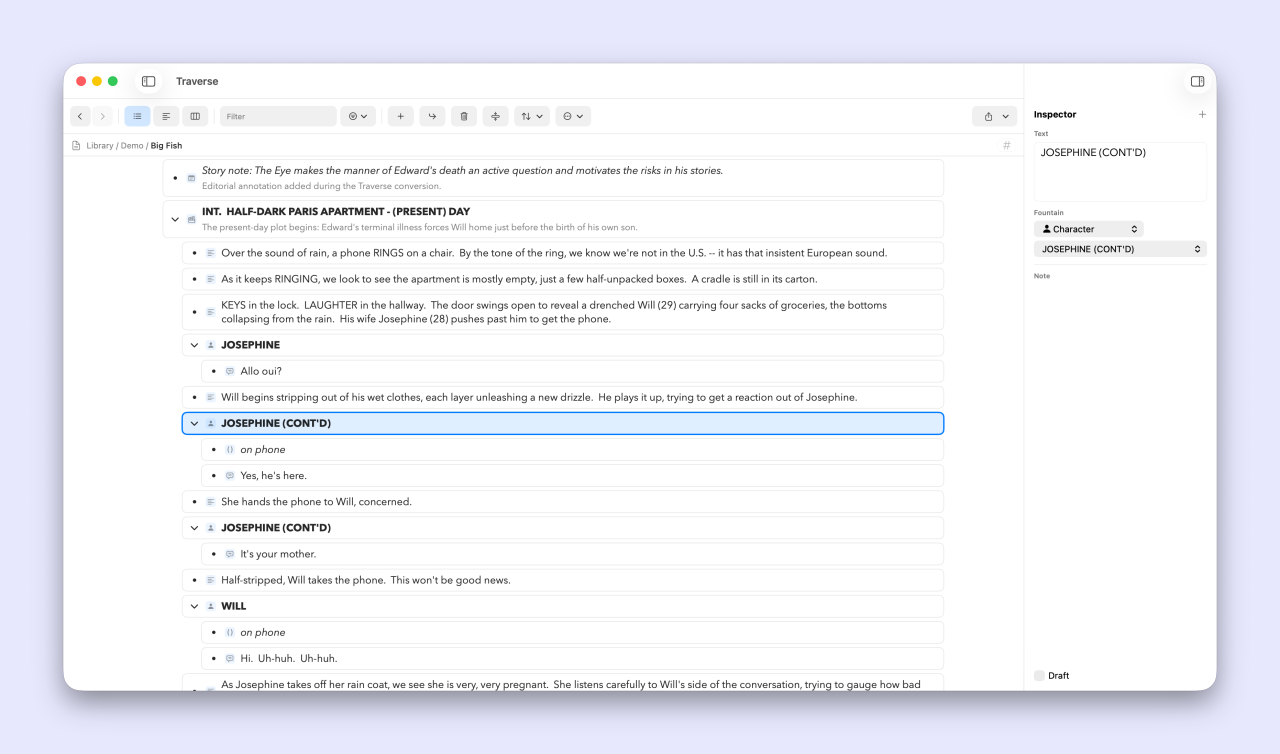
This guide introduces the feature and builds a complete short scene step by step.
What Fountain is
Fountain is an open plain-text syntax for screenwriting. Because a Fountain file is text, it is portable and can be opened by a range of screenwriting and filmmaking tools.
Traverse does not require you to type Fountain punctuation into every outline node. You can choose a role directly and let Traverse create the correct export syntax, or use familiar Fountain markers as a quick way to assign roles while typing.
The available roles are:
- Action — scene description and action; the default role.
- Heading — structural sections such as acts or sequences.
- Scene Heading — slug lines such as
INT. OBSERVATORY - NIGHT. - Synopsis — a structural summary that is useful for planning but not part of the screenplay’s visible action.
- Note — a Fountain note included in the script source.
- Character — a character cue.
- Parenthetical — a short performance direction beneath a character.
- Dialogue — spoken text beneath a character.
- Transition — for example
CUT TO:orFADE OUT.. - Lyrics — sung text.
- Centered — centred screenplay text.
- Page Break — a forced Fountain page break.
- Shot — a shot or mini-slug (uses Beat-compatible shot syntax).
Traverse also understands Draft nodes, ordinary node notes, colour Marks and screenplay title-page metadata when exporting.
Three ways to assign a Fountain role
Once Fountain is enabled for an outline, you can:
- Click the Fountain icon on a node and choose a role.
- Use the Format menu, which lists Fountain roles and shows keyboard shortcuts for the first ten.
- Use smart Fountain entry by starting a line with a Fountain marker followed by a space.
Smart entry removes the marker from the visible text and assigns the role:
| Start the line with | Traverse assigns |
|---|---|
# |
Heading |
. |
Scene Heading |
= |
Synopsis |
@ |
Character |
( |
Parenthetical |
> |
Transition |
~ |
Lyrics |
>< |
Centered |
[[ |
Note |
!! |
Shot |
! |
Action |
=== |
Page Break |
The space makes the intent explicit. Typing . INT. OBSERVATORY - NIGHT creates a Scene Heading node whose visible text is INT. OBSERVATORY - NIGHT. A conventional forced character cue such as @MAYA is also recognised.
New lines inherit context where that helps. In Writer view, Shift-Return on a Character creates a child Dialogue line. If a new line inherited a Fountain role you do not want, press Backspace at the beginning of the empty line to return it to the default Action role.
When to use Fountain in Traverse
Fountain is useful when you want an outline to remain central to the development of the script.
That can mean:
- Moving whole scenes or sequences without losing their contents.
- Keeping a synopsis next to the scene it describes.
- Collapsing scenes to review the rhythm of the story.
- Using Column view to move from act to scene to beat without opening the whole script.
- Marking scenes by character, thread, status or another visual system.
- Keeping alternate dialogue or scene versions as Draft branches.
- Exporting portable Fountain rather than locking the work to one application.
If your work is a general article or report, use Traverse’s Type attribute instead. Type and Fountain are alternative structural modes and cannot both be enabled in the same outline.
Tutorial: write a short scene
We will create the opening of a fictional scene in an abandoned observatory.
Step 1: start with the story hierarchy
Create a blank outline named The Clock Above the City. Switch to Writer view with Command-2 if you want the script to read as a continuous document while you build its hierarchy.
Add this initial structure:
ACT ONE
    The observatory wakes during a storm.
    INT. OBSERVATORY - NIGHT
        The old brass telescope ticks although nobody has touched it in years.
        MAYA
            under her breath
            That clock is counting down to something.
        ELIAS
            It already did. We are late.
        CUT TO:
This hierarchy is deliberate:
- The act contains its summary and scenes.
- The scene contains its action, characters and transition.
- Each Character contains the Parenthetical, Dialogue or Lyrics that belong to that cue.
It is possible to export many valid arrangements, but this pattern makes the screenplay easy to understand in both Column and Outline view.
Note you can either add the example text above manually in Traverse or you can copy the text and paste it into a blank Traverse outline. Each line becomes a node, and Traverse preserves the indentation as parent-child hierarchy, giving you the screenplay structure immediately!
Step 2: add Fountain to the document
Open the Inspector and click the + button. In the Attributes sheet, choose Fountain under Add Defaults, then click Done.
Adding Fountain requires Traverse Pro. Fountain remains editable in an outline that already contains it even if Pro is no longer active.
If the outline already has Type, Fountain will not be available. These two attributes both define the document’s structural language, so remove Type first only if you intend to convert the outline to a screenplay workflow.
Once Fountain is enabled, any node without an explicit value is treated as Action. This keeps the common case quick: most action nodes need no extra setup.
Step 3: assign the structural roles
Select ACT ONE and set Fountain to Heading. If you are entering the text now, type # ACT ONE to apply the same role with smart entry.
Select The observatory wakes during a storm. and choose Synopsis, or begin it with = . In Fountain export, the Heading becomes a section marker and the Synopsis becomes a synopsis line beneath it.
Select INT. OBSERVATORY - NIGHT and choose Scene Heading. You can also create it by typing . INT. OBSERVATORY - NIGHT. Traverse ensures the exported slug line is recognised as a scene heading, even if the wording does not begin with one of Fountain’s conventional INT. or EXT. forms.
Leave The old brass telescope ticks… as Action.
Step 4: build the dialogue blocks
Select MAYA and set Fountain to Character. Smart entry with @ MAYA produces the same role.
Then assign its children:
- under her breath → Parenthetical
- That clock is counting down to something. → Dialogue
Set ELIAS to Character and It already did. We are late. to Dialogue.
Character nodes should own their Dialogue, Parenthetical and Lyrics children. During export, Traverse keeps those children together directly beneath the character cue. Other children continue as ordinary screenplay elements after that dialogue block.
Writer view makes this pattern quick: press Shift-Return while editing a Character to create a child line. Traverse recognises the context and starts that child as Dialogue. Tab and Shift-Tab can then adjust its place in the hierarchy without leaving the writing flow.
You can select multiple dialogue nodes and set their Fountain role together in the batch Inspector. This is particularly useful after pasting or importing a larger scene.
Step 5: add the transition
Select CUT TO: and set Fountain to Transition. When entering it as a new line, type > CUT TO:.
Traverse’s exporter preserves conventional all-caps transitions ending in TO:. If you use a custom phrase that would otherwise be ambiguous, Traverse forces it as a Fountain transition in the exported text.
Step 6: use suggestions as the script grows
After a script contains Scene Heading, Character or Transition nodes, the Inspector offers suggestions drawn from the current document.
When you add Maya later in the script:
- Create a node where the cue belongs.
- Set it to Character.
- Use Choose Character… beneath the Fountain picker.
- Select MAYA from the existing values.
The selected text remains editable. Suggestions help prevent small inconsistencies such as Maya, MAYA and MAYA becoming separate cues. Similar menus make repeated scene headings and transitions easier to reuse.
Character names beginning with Fountain’s @ forced-character marker are displayed cleanly in Traverse while remaining valid in the saved and exported screenplay.
Step 7: add title-page information
Click the document breadcrumb above the workspace—the line showing the library path and title—to open Document Details.
Expand Fountain title page and add any information you need:
- Credit, such as Written by
- Author
- Source
- Draft date
- Contact
- Notes
The outline’s document title supplies the Fountain Title field. This metadata is stored with the working OPML document rather than scattered through the scene outline.
Click Done to save the details.
Step 8: decide how working material should export
Open Settings → Export and select Fountain. Five options control the hand-off:
- Include document title and metadata writes the Fountain title page.
- Include notes turns Traverse node notes into Fountain notes alongside their nodes.
- Include drafts as Boneyard exports Draft nodes inside Fountain’s
/* … */Boneyard comments instead of omitting them. - Append marks as [[colours]] adds compatible colour notes to marked Heading, Scene Heading and Synopsis elements. For a marked Fountain Note, it starts the note with a coloured marker, such as
[[marker red: Note content]]. - Append beats as [[beat values]] exports values from a custom Lookup attribute with the key
beatas Beat storylines, such as[[beat Main plot, Romance]].
The colour-marker and story-beat options use optional extensions rather than standard Fountain syntax. They are especially useful in Beat, our recommended companion app, which supports them in its outlining and story-development tools. Other Fountain apps may ignore or display these notes differently.
There are two different kinds of note here. A node whose Fountain role is Note is screenplay-source material and exports as a Fountain note. The separate Traverse Note attribute is working commentary; it is included only when Include notes is enabled.
For a clean first export, turn on the title page and leave working notes and drafts off. For a hand-off that preserves editorial context, enable the options you need.
Step 9: export the Fountain file
Choose Export → Fountain… from the menu bar and save the .fountain file.
The scene will resemble:
Title:
    The Clock Above the City
Credit: Written by
Author: Your Name

# ACT ONE

= The observatory wakes during a storm.

INT. OBSERVATORY - NIGHT

The old brass telescope ticks although nobody has touched it in years.

MAYA
(under her breath)
That clock is counting down to something.

ELIAS
It already did. We are late.

CUT TO:
Open the result in your chosen Fountain-compatible tool to review screenplay pagination and presentation. Traverse is responsible for the outline and semantic source; the receiving application can take over specialised screenplay layout.
Importing or generating a starting script
Traverse Pro can import an existing .fountain file and turn its screenplay elements into editable outline nodes. This is useful when a script already exists but you want to examine its acts and scenes through hierarchy, Columns, Focus or filters. Review the imported parent-child relationships—especially unusual dialogue layouts or non-standard extensions—before continuing.
Plain text and indented material can also be pasted as nodes. Traverse keeps leading indentation as hierarchy, which is useful when moving a beat sheet or scene plan into an existing screenplay outline.
On a supported Mac, Traverse Pro can use Apple Intelligence to generate a starting film or screenplay outline. Enable the Fountain formatting option when you want the generated nodes to arrive with screenplay roles rather than as a general outline. The result is still a starting point: every node remains editable and local to your outline.
Working with scenes at scale
Use Heading and Synopsis for the view behind the screenplay
Headings can represent acts, sequences or other structural groupings. Synopses can hold the dramatic purpose of each section or scene. Both are part of Fountain’s outlining layer and help you review the story without reading every line of action and dialogue.
Use Draft for real alternatives
Select a node and turn on Draft in the Inspector when it is not part of the current screenplay. A Draft scene can retain all of its children. By default it is omitted from Fountain export; with Include drafts as Boneyard, the whole branch travels as commented-out source.
This is useful for alternate entrances, experimental dialogue and scenes you may restore later.
Use Marks consistently
Marks are a lightweight colour system inside Traverse. You might use one colour for each story thread, for scene status or for point-of-view characters. With the mark-colour export option enabled, those Marks carry into Beat as colour notes on headings, scene headings and synopses; marked Fountain Notes export as coloured markers too.
Track story beats, tension and revision work
Fountain describes screenplay meaning: Scene Heading, Action, Character, Dialogue and the other elements that become screenplay source. Tasks and custom attributes can sit alongside those roles to describe the work around each scene without adding production notes to the script itself.
The built-in Task attribute is a simple way to track progress. Mark a scene or beat Not started, In progress or Done, then filter the outline to see only material that still needs attention. A scene keeps that state when it moves elsewhere in the structure, and several selected scenes can be updated together.
Traverse Pro custom attributes let you track questions specific to the screenplay. For example:
- A Story beat Lookup with values such as Setup, Inciting incident, Reversal, Midpoint and Climax.
- A Tension Number using a consistent scale, such as 1–10.
- A Story thread Lookup for the plot or subplot advanced by each scene.
- A Needs work Checkbox for scenes that require another pass.
- A Revision stage Lookup with values such as Rough, Structural edit, Dialogue pass and Ready.
Once those fields are in place, you can filter for every scene marked Needs work, isolate one story thread, or compare tension values as you move through the script. In Manual Columns, keeping several scene branches visible together can make those comparisons particularly useful.
Tasks and custom attributes are working metadata rather than Fountain elements, so they remain in the Traverse outline without changing the screenplay text. Use a Fountain Note when information genuinely belongs in the screenplay source; use a Traverse Note, Task or custom attribute when it belongs to your development process.
If you use the Story beat Lookup, give it the key beat (its label can still be Story beat) and enable Append beats as [[beat values]] in Fountain Export settings. Traverse will add Beat-compatible storyline notes wherever you have assigned a value, for example [[beat Midpoint]] or [[beat Main plot, Romance]]. This is an optional Beat extension, rather than standard Fountain syntax, but it is a particularly useful way to carry the story structure you built in Traverse into Beat’s Timeline and Index Card views.
Filter by screenplay role
The filter menu can isolate Scene Headings, Characters, Synopses or any other Fountain element. This is an efficient way to review all scenes, check recurring character names or find every structural note. Fountain attribute filters require Traverse Pro.
Remember that Action is intentionally quiet
Action is the default and is stored without unnecessary attribute noise. If a node appears to have no explicit Fountain value, it still behaves as Action. Assign another role only when the screenplay semantics require it.
A screenplay source that remains an outline
The main advantage of Fountain in Traverse is not simply that it can produce a .fountain file. It is that the screenplay can stay navigable while it changes.
You can move through acts and scenes in columns, collapse the prose to examine the story, focus on one branch, keep alternatives nearby and export a standards-based text file when the script needs to continue elsewhere.
The plan and the screenplay no longer have to live in completely separate structures.
Traverse
Develop screenplays as deep, navigable outlines and export portable Fountain when they are ready to move on.