Article
Apps on your devices often end up holding far more personal information than we realise—notes, timelines, ideas, even half-finished thoughts. Tools like Timelined and Anecnote are designed to be useful, but that usefulness can also mean they contain things you’d prefer to keep private if someone else happens to pick up your phone.
The good news is that you don’t have to rely on each individual app to build its own privacy features anymore. Since iOS 16 (and expanded further in iOS 17), Apple has made it much easier to control access to apps at the system level. That means you can add an extra layer of protection—like a passcode or Face ID—without waiting for developers to implement it themselves.
Locking apps with Face ID
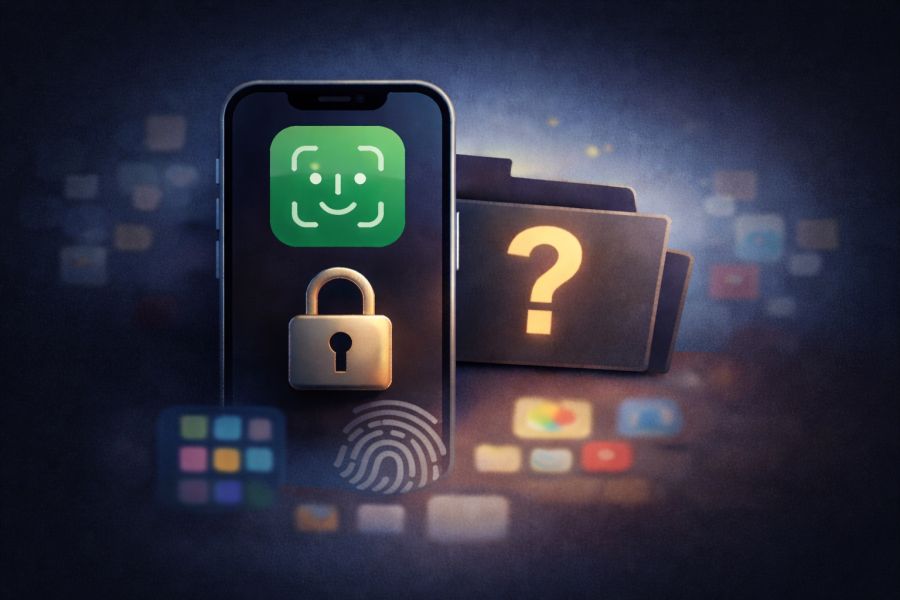
iOS now allows you to require Face ID (or your device passcode) before opening certain apps. When you enable this, the system handles the authentication automatically—no extra setup inside the app is required.
To enable it:
- Press and hold the app icon on your Home Screen
- Tap Require Face ID
Once enabled, you’ll be prompted to confirm your identity each time you open the app.
Hiding apps completely
When setting up Face ID protection, iOS also gives you an additional option: “Hide and Require Face ID.”
Selecting this does two things:
- It locks the app behind Face ID or your passcode
- It removes the app from your Home Screen and places it into a dedicated hidden folder
This hidden folder isn’t visible in the usual places on your device and can only be accessed after authenticating with Face ID. It’s a simple way to keep sensitive apps out of sight as well as protected.
A note on app privacy
It’s worth noting that these features are about controlling access to apps on your device—they don’t change how an app handles your data behind the scenes. App privacy is a separate consideration.
For Shaking the Habitual apps, your data remains your own. It is stored locally on your device and, if you choose, within your own iCloud storage. It isn’t uploaded to external servers or shared elsewhere, giving you control not just over who can open the app, but also where your information lives.
Why this matters
These features aren’t about secrecy—they’re about control. Your phone is a personal device, and it’s reasonable to decide what others can and can’t see, even in everyday situations like handing your phone to a friend to show a photo.
By using the built-in tools in iOS, you can protect your data without needing to change how you use your apps. It’s a quiet, practical layer of privacy that works in the background—exactly where it should be.
iOS apps
Not tried our apps yet? Download and test them today for FREE!

Timelined
Visual timelines and dated notes.

Anecnote
Flexible note-taker and memory manager.

Versus
The most advanced scorekeeping and tracking app for iOS.